
Read the page, or only what you want
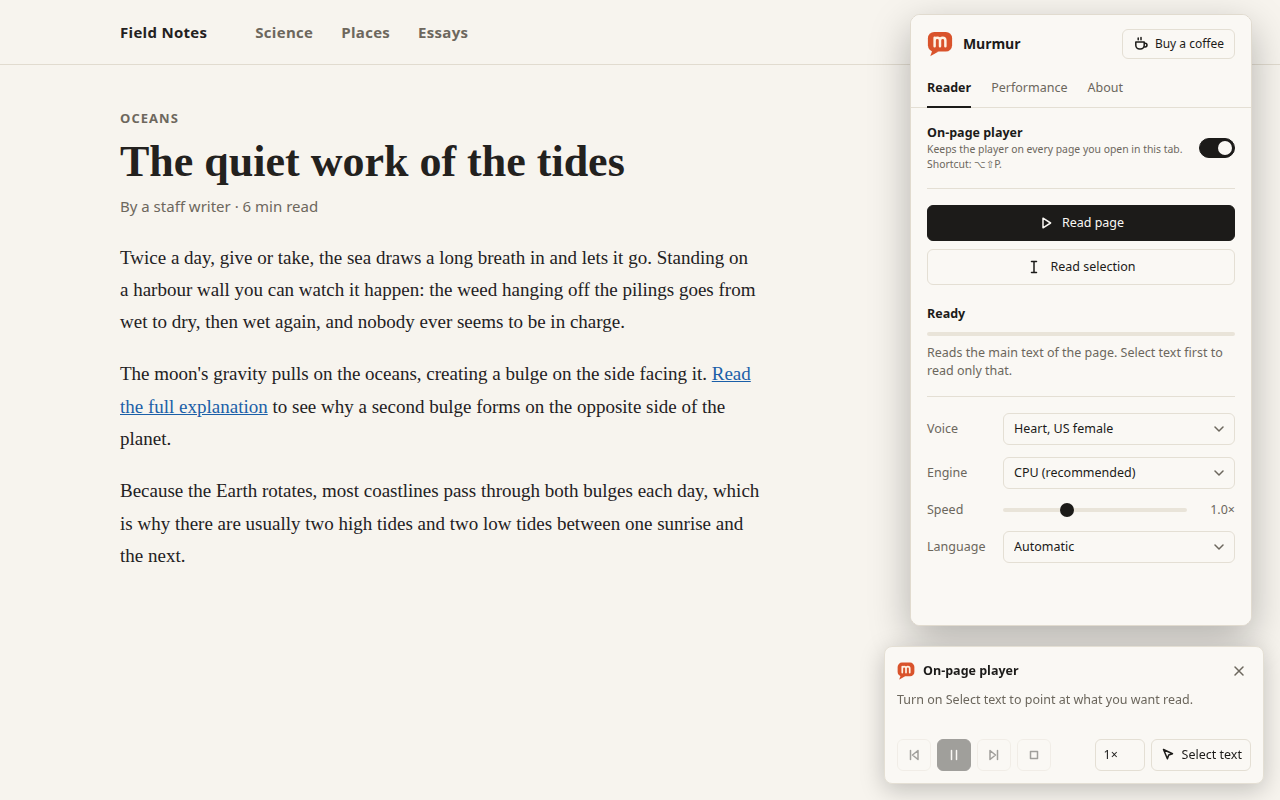
Press Read page to hear the main text of an article, or select some text and press Read selection. Or point at a paragraph, heading, link or button and click it.
Murmur reads web pages aloud. Point at text to hear it, pick several blocks to read together, and follow along as the text you are hearing is highlighted.
Coming to the Chrome Web Store How it works
Free. English voice. Chrome 116 or later.
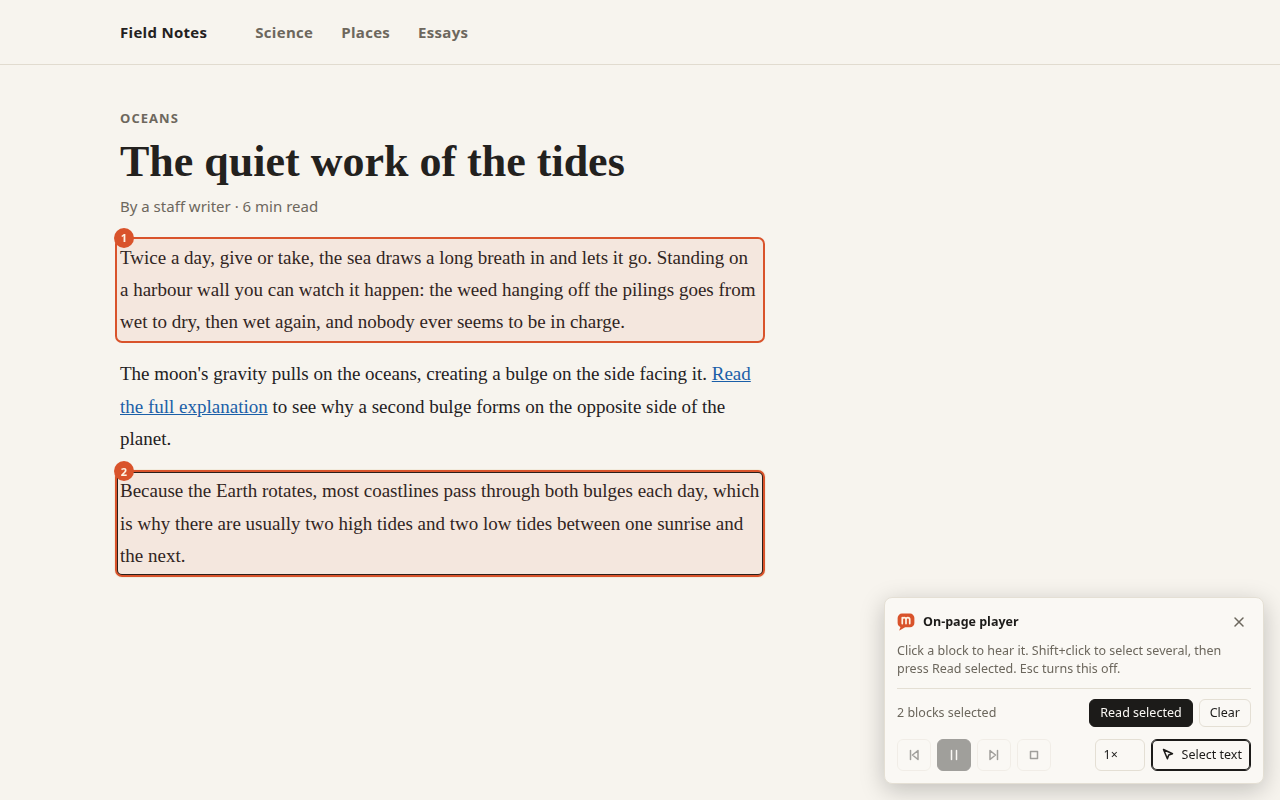
Press Read page to hear the main text of an article, or select some text and press Read selection. Or point at a paragraph, heading, link or button and click it.
Shift+click to build a numbered list of blocks. Murmur reads them together, in the order they appear on the page.
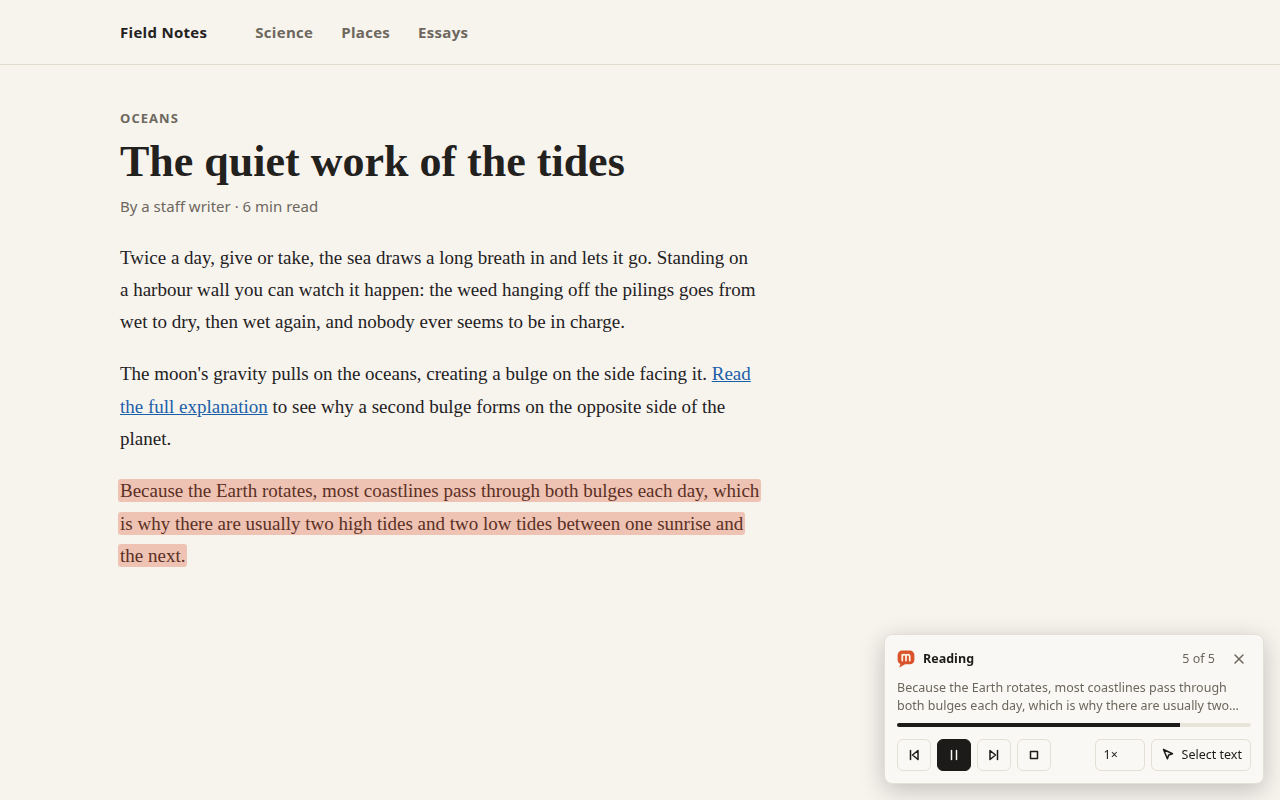
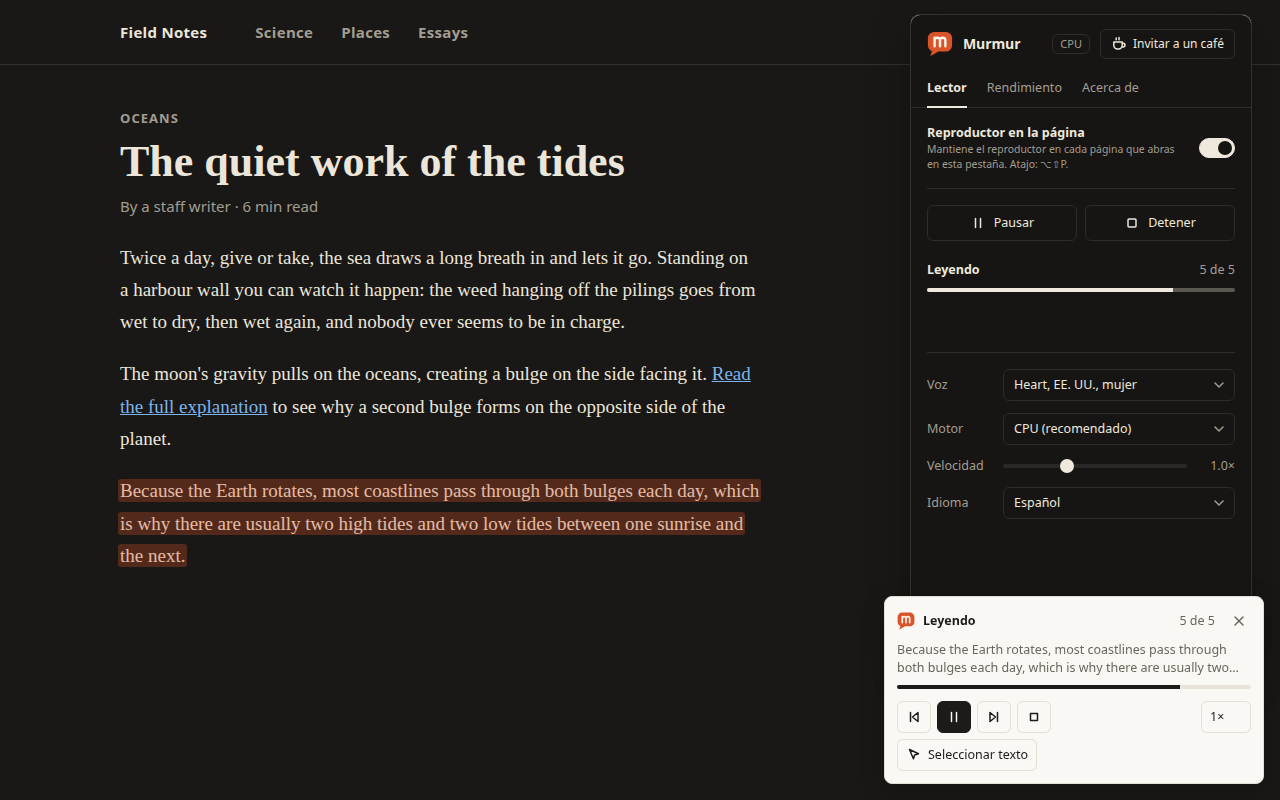
The text being read is highlighted as it is read, and the page scrolls to keep it in view. The highlight is drawn over the page; it never changes it.
Turn on the on-page player once and it stays on every page you open in that tab: previous and next sentence, pause, stop and speed.
Move through a page with the arrow keys and hear each block. Links are read by name, followed by “link”, never by their web address.
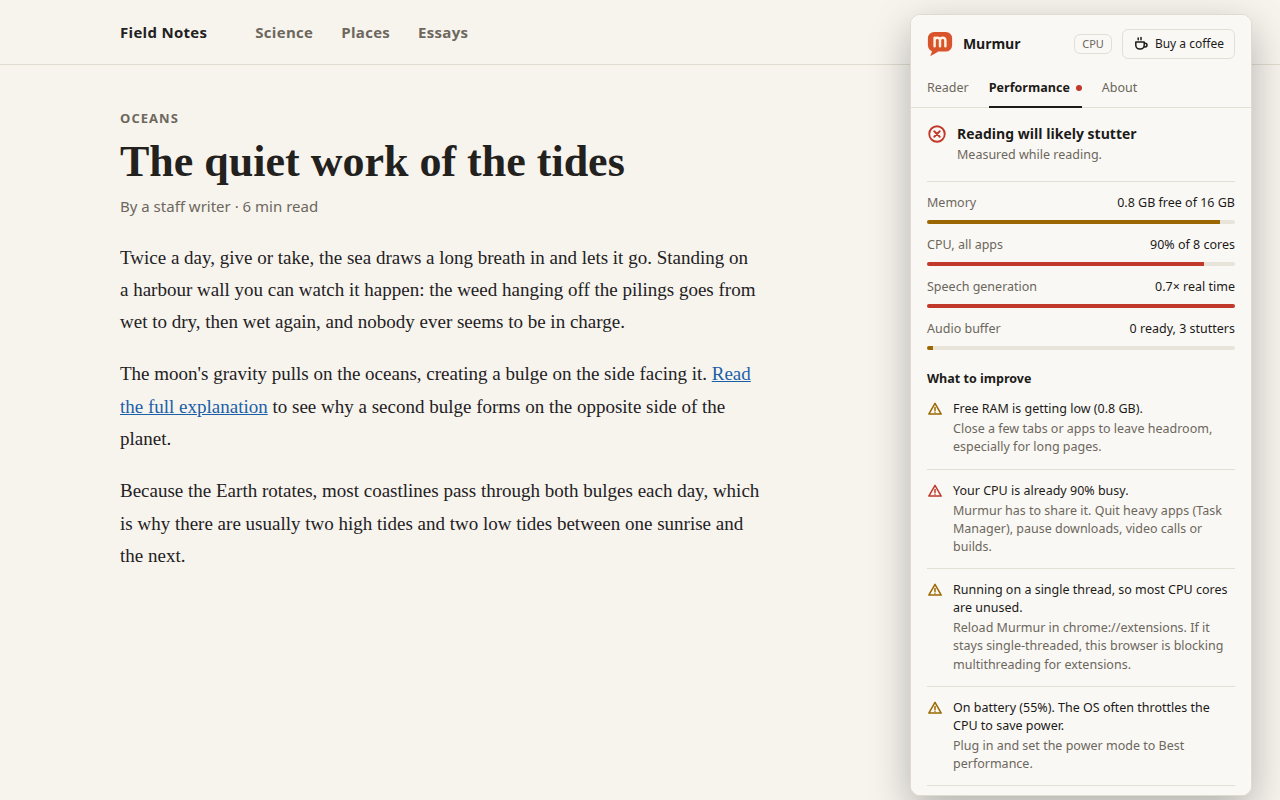
A Performance tab shows whether your computer can keep up and, if it can't, what to change: memory, processor, battery.
With Select text on:
| ↑ ↓ | Move to the previous or next block and read it |
|---|---|
| S | Pick or unpick the current block |
| Enter | Read the picked blocks (or the current block if none are picked) |
| Shift+Enter | Open the current link or press the current button |
| Space | Pause or resume while reading |
| Esc | Clear the picked blocks; press again to turn Select text off |
Anywhere in the browser:
| Alt+Shift+P | Show or hide the on-page player |
|---|---|
| Alt+Shift+K | Pause or resume |
| Alt+Shift+X | Stop |
You can change these at chrome://extensions/shortcuts. If another app or extension already uses a combination, Chrome leaves it unassigned; the Murmur popup shows what is actually set.
Murmur is meant for people who are blind or have low vision, people with dyslexia or eye strain, and anyone who would rather listen than read. Every control can be reached from the keyboard and is labelled for screen readers, and hovering a control in the player says what it does.
We are still learning what different setups need. If something does not work for you, tell us.
The interface is available in English, Spanish, French, German and Brazilian Portuguese.
Only the interface is translated. The voice speaks English, so text in other languages will not be read well.
Yes. There is an optional link in the popup if you would like to support its development. Nothing is locked behind it.
Chrome 116 or later. Other Chromium-based browsers that run Chrome extensions may work, but Chrome is what we test with.
Murmur is downloading its speech files (about 90 MB). That happens the first time; your browser keeps them. Choosing a voice for the first time downloads one more small file.
Chrome does not allow extensions on its built-in PDF viewer, on browser pages such as the new tab page, on the Chrome Web Store, or on local files. Murmur tells you when that is the reason. For a PDF, copy the text out or open it in another viewer.
The voice speaks English. Text in other languages will not be read well.
Open the Performance tab in the popup. It shows free memory, processor load and battery state, and tells you what to change. Keep the engine on CPU, and close other heavy apps or tabs.
Open chrome://extensions/shortcuts. If a Murmur command shows as not set, another app or extension uses that combination. Pick a different one there.
Murmur is made by 76Softwares.